
Issue Workflows
Issue Workflows
An issue can follow one of two workflows:
- The "Default" workflow is quite simple and includes the following statuses:
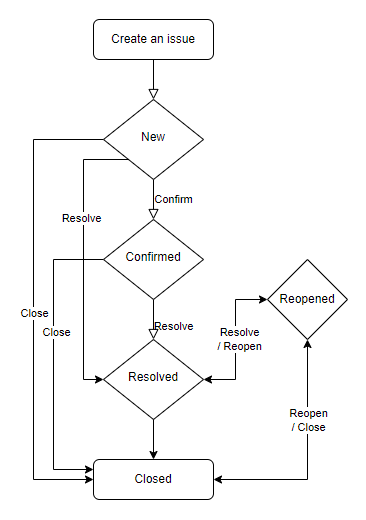
- The "Servicing" workflow is better suited for issues that require a site visit or more involved troubleshooting:
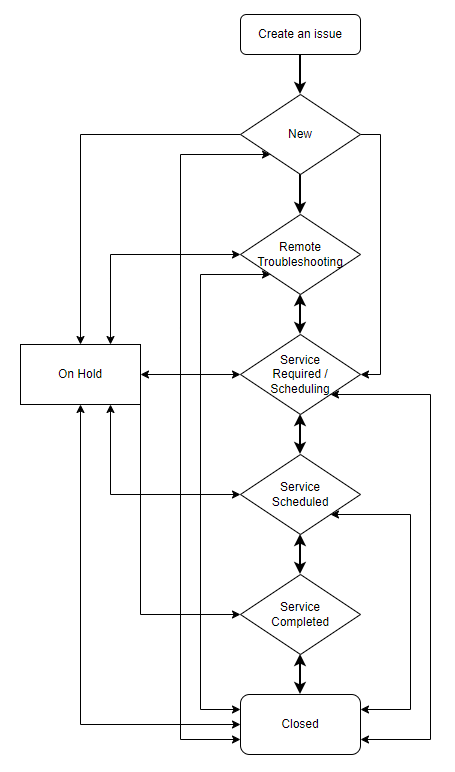
Moving an Issue Between Workflows
An issue can be moved from one workflow to another both on the issue page or on the issues list page.
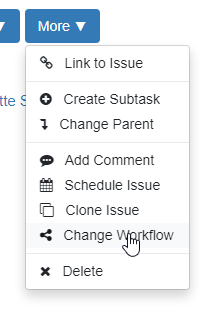
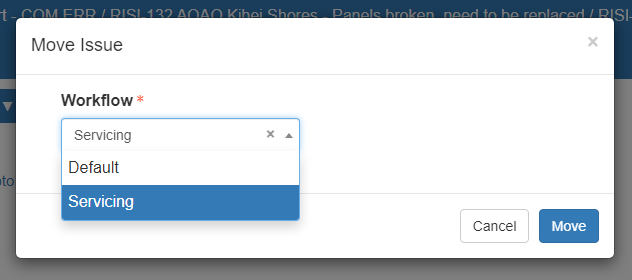
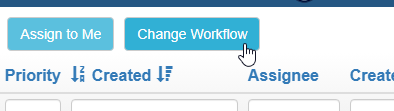
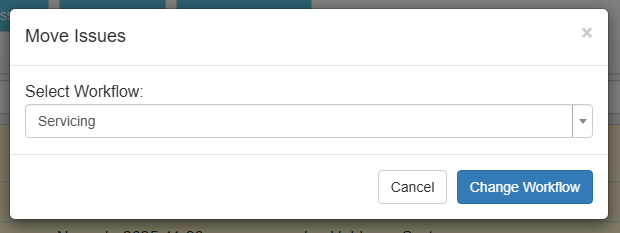
On the issues page, you can change the workflow using the "Change Workflow" function:
Bulk-moving Issues Between Workflows
If you need to move multiple issues at a time:
- Open the Issues List page
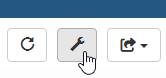
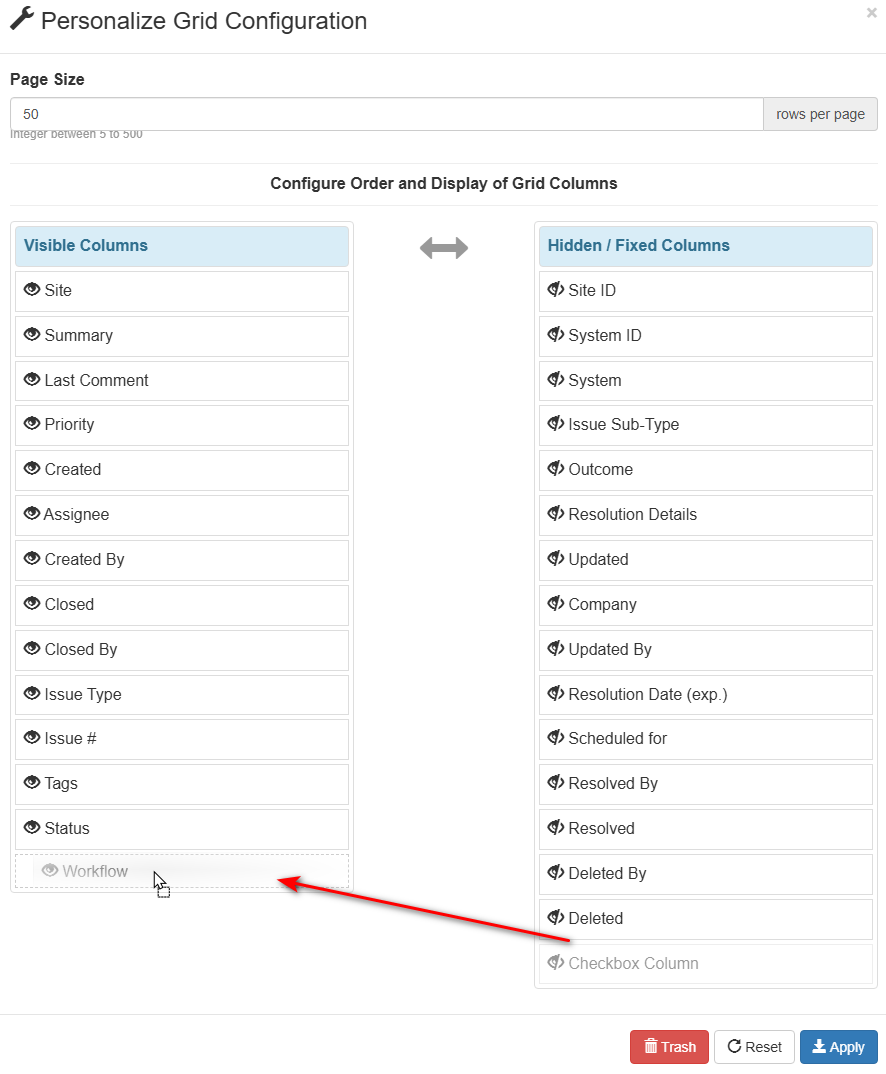
- If the "Workflow" column is not in your view, click on the wrench icon and, in the window that appears, drag it from the column list on the right to the column list on the left, and click save to add it to your view
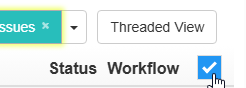
- Then use the checkboxes on the right to select the issues you wish to move (or click on the top-right corner to select all issues in view)
- And finally use the "Change Workflow" button at the top of the screen to bulk move all selected issues to the new workflow.
Visual guide follows.
Adding "Workflow" column to your issues list view:
Selecting all issues:
Changing workflows:
No Comments